
DocumentationWhatsApp CRM PRO OverviewWhatsApp CRM PRO How to Use
How to Use
First login
- Scan the WhatsApp Web QR code as usual.
- After activation, the CRM sidebar opens on the right.
- Use the account switcher (right edge) to add or switch WhatsApp accounts.
Multi-account
- Each account uses a separate session slot (URL parameter
whatsapp_crm_slot). - Adding an account opens a new slot without logging out the current one.
CRM sidebar
- Organize chats with labels, notes, and kanban columns.
- Use built-in automation and AI tools from the sidebar panels.
Links
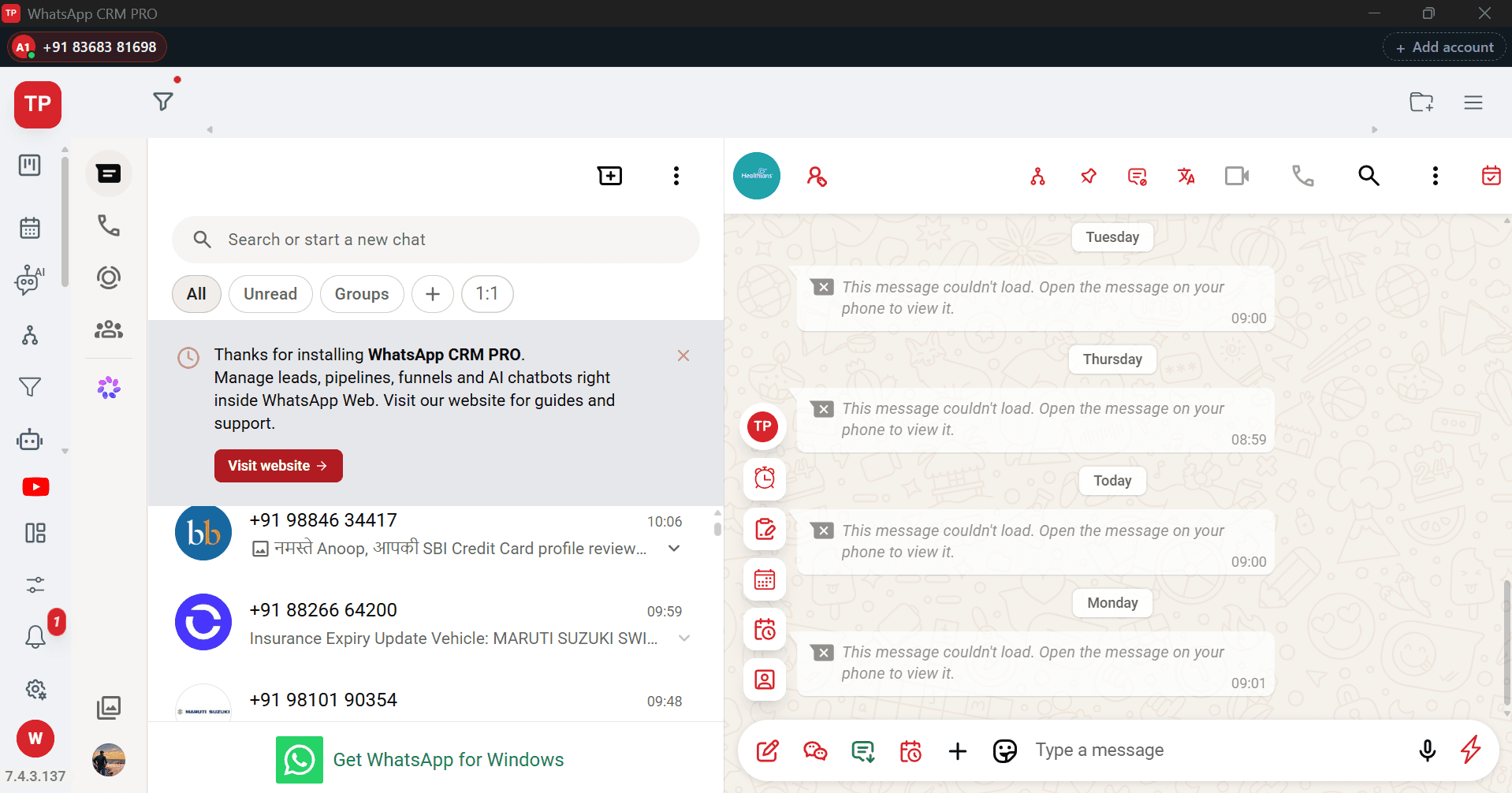
Interface Screenshot
Frequently Asked Questions
Where do I download WhatsApp CRM PRO?
After purchase, download the installer from My Licenses or Purchases in your customer dashboard. It is not a public direct link.
Can I run more than one WhatsApp number at the same time?
Yes. Each account runs in its own isolated session, so numbers stay signed in side by side without one logging the other out.
How does activation work?
The licence is asked for once, on first launch, and is bound to that computer. You are never asked again inside the CRM. Moving to different hardware needs a licence reset from support.